
What the Krira TV web version search can mean
The phrase Krira TV web version may describe a browser article, a direct web player or an Android app used on a PC. These are different tasks. A web page is HTML rendered by Chrome, Safari or Firefox; an APK is an Android installer; an emulator supplies Android inside another operating system. A download page may use a browser as the transfer tool without offering browser playback.
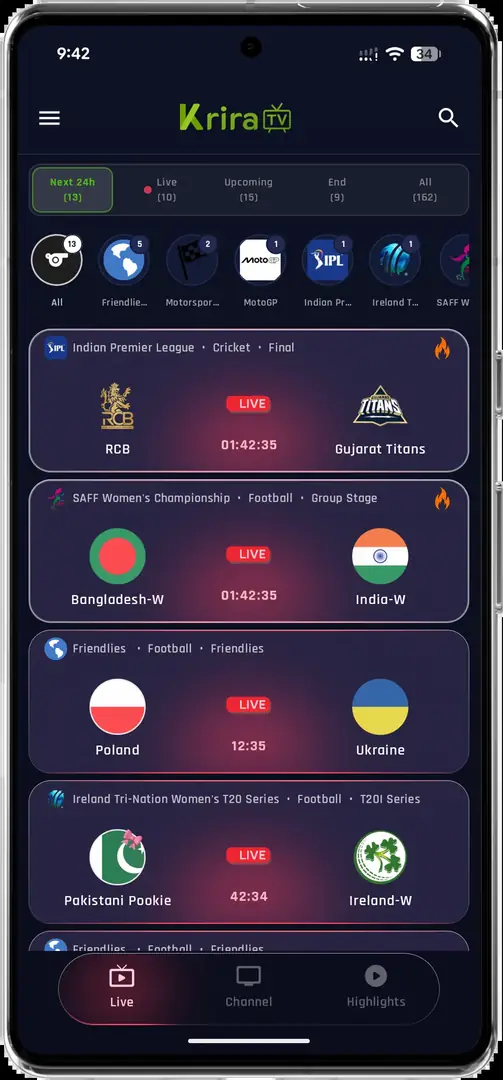
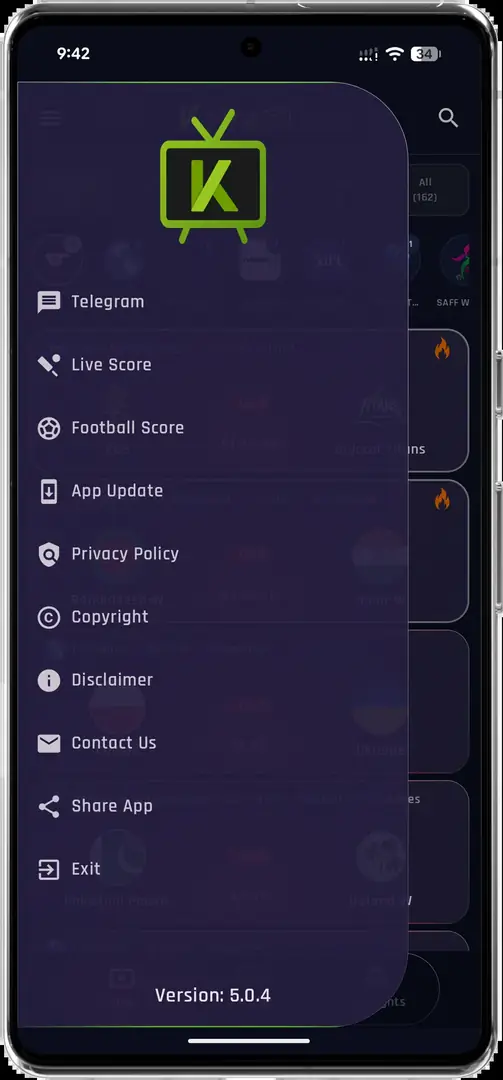
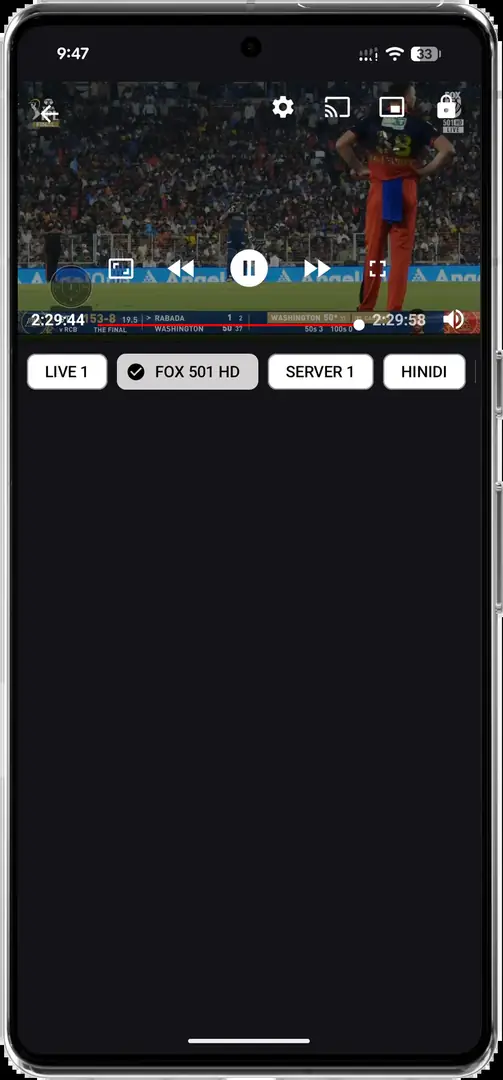
The current site inventory contains Android, PC-emulator, Android TV, Firestick and iOS guidance, but no route documenting a standalone web player. Existing screenshots show the Android event list and player. They identify the installed app, not a desktop URL. Treat web or online wording as a compatibility question and ask what actually runs before clicking a download button.
- Web page: opens as HTML without an app install.
- APK: installs on compatible Android and cannot run directly in a browser.
- Emulator: runs Android on a PC with extra setup and resource use.
- Casting: sends or mirrors content and does not create a native web version.
If a page only offers an APK file, it is an Android distribution page. A true web version needs a documented browser URL and a player that works without the package.
How to check browser access before installing
Open the documented source page and look for a real player route instead of a button that immediately downloads an APK. A page that asks you to enable unknown-app installation, open a file manager or transfer a package to Android is describing sideloading, not a web version. Save the URL and check date so a later change can be compared.
Do not use a video thumbnail, advertising redirect or generic extension prompt as proof of support. A useful browser test should load its own event list and controls in the page, explain any account or network requirement and leave the browser in control. If the next action is an Android installer, stop the browser test and use the matching app guide.
- Confirm the addressCheck HTTPS, spelling and the page title before following a CTA.
- Look for browser playbackA genuine player should render its event list and controls without an APK.
- Classify the next stepAllow from this source, file transfer or emulator setup means an app workflow.
- Stop at unclear warningsDo not bypass security prompts or install unrelated extensions to force a result.
| Browser signal | What it proves | What it does not prove |
|---|---|---|
| Article or FAQ | The source is readable | That streams play in the browser |
| HTML5 controls | A page can render controls | That the page is an official Krira TV service |
| APK button | An Android package is offered | That Chrome can run it |
| Extension prompt | A third party requests access | That it is required or trustworthy |
Krira TV browser access versus APK installation
An APK is a package that Android verifies and installs. Changing its filename to .html cannot make it run in a browser. Android may ask for permission for the specific browser or file manager that opened it. Grant that permission only when the source and checksum match, then remove the temporary permission after installation.
The browser is still useful before and after installation: read the version record, compare the file size and SHA-256, and find troubleshooting steps. It cannot repair a signature mismatch, incompatible architecture or remote stream outage. Those failures belong to the Android or service layer, so use the correct guide instead of searching for a supposed web unlock.
| Goal | Browser-only path | Supported app path |
|---|---|---|
| Read release details | Open the version page | Not required |
| Watch in a documented player | Use only when a real player URL is proven | Not an APK function |
| Install Android app | Download and verify package | Open it on compatible Android |
| Use Windows | Read instructions | Use the same Android emulator as the PC guide |
| Use iPhone or iPad | Read availability notes | An APK cannot install |
Use Chrome to inspect and verify a release. The app still needs an Android-compatible environment unless a documented web player is proven separately.
Phone and PC choices when no web player is available
For an Android phone, follow the existing APK workflow. Compare the listed version and hash, read Android's installer screen and install over the existing package only when the package identity and signing certificate match. A browser warning can be generic, while a damaged file, incompatible version or signature conflict is a different problem. Delete a file that fails its hash check instead of disabling device security.
On Windows or macOS, the browser can display documentation but an APK still needs Android. The existing PC guide therefore uses an emulator rather than claiming a native Windows installer. An emulator adds memory and input differences, so keep its Android version visible when reporting an issue. Do not download several repackaged “PC versions” just because their pages use the word web.
- Read the current recordUse the homepage and versions page for the checked release, size and checksum.
- Verify before openingCompare filename, byte count and SHA-256 with the source record.
- Install narrowlyAllow the current browser or file manager only for this package.
- Test and documentRecord Android version, app version and the exact error before reinstalling.
- Keep important settings before an uninstall.
- Never treat a renamed APK as a web version.
- Clear cache before clearing storage when diagnosing playback.
- Use the PC guide instead of an unverified EXE.
Smart TV, Firestick and casting limits
A large-screen request is often described as a web-version request even when the need is casting. Krira TV has separate Smart TV, Android TV box and Firestick guidance because these devices differ in operating system, storage and remote focus. A laptop browser connected to a display does not make the APK a TV web app or guarantee that a stream can be sent through a receiver.
For Android TV or Fire OS, use the matching guide and verify the operating system before transferring a package. Samsung Tizen and LG webOS do not install Android APK files directly. If you use an HDMI Chromecast or another receiver, treat it as a separate display path and confirm that the source actually supports casting; a generic Cast button is not proof of Krira TV support.
- Identify Android TV, Google TV, Fire OS, Tizen or webOS first.
- Keep the APK filename and hash visible during transfer.
- Test remote focus on the home screen before playback.
- Treat Chromecast or Roku casting as a separate compatibility question.
Krira TV web version FAQ
Does Krira TV have a web version?
A separate browser player is not independently verified in the current evidence set. The browser can open information and release pages, while the app workflow uses an Android package.
Can I watch Krira TV in Chrome without an APK?
Only when a documented web player loads the event list and controls in Chrome. An APK download page alone does not provide browser playback.
Is Krira TV online the same as Krira TV APK?
No. Online wording may describe a browser download page. The APK is still an Android installer with compatibility and signing requirements.
Can I use the Krira TV APK on a PC?
An APK does not run natively on Windows or macOS. Use an Android emulator and follow the PC guide.
Can I cast Krira TV to Roku or Chromecast?
Casting depends on the app, receiver and network. A generic Cast button is not proof of Krira TV support; treat it as a separate compatibility check.
What if a browser page offers an EXE?
Do not infer that it is official or safe. Check the publisher, package details, checksum and purpose; use the verified emulator path when the release is an APK.