1. Identify what is not working
The phrase “Krira TV not working” can describe several different failures. An app that closes immediately points toward installation, Android compatibility or damaged local data. An app that opens but shows no events may be waiting for remote data. A player that opens and buffers forever is more likely to involve the selected stream, network path or service capacity. Write down the exact screen and error before changing anything. Test one ordinary action at a time: open the home screen, refresh the event list, select another event and then start playback. This sequence shows where the failure begins. Also note whether the problem affects one device, every device on the same Wi-Fi network, or users on different networks. That distinction prevents unnecessary APK reinstalls during a wider outage.
| Symptom | Likely area | First check |
|---|---|---|
| App will not open | APK, Android or local cache | Restart the device and confirm the app version |
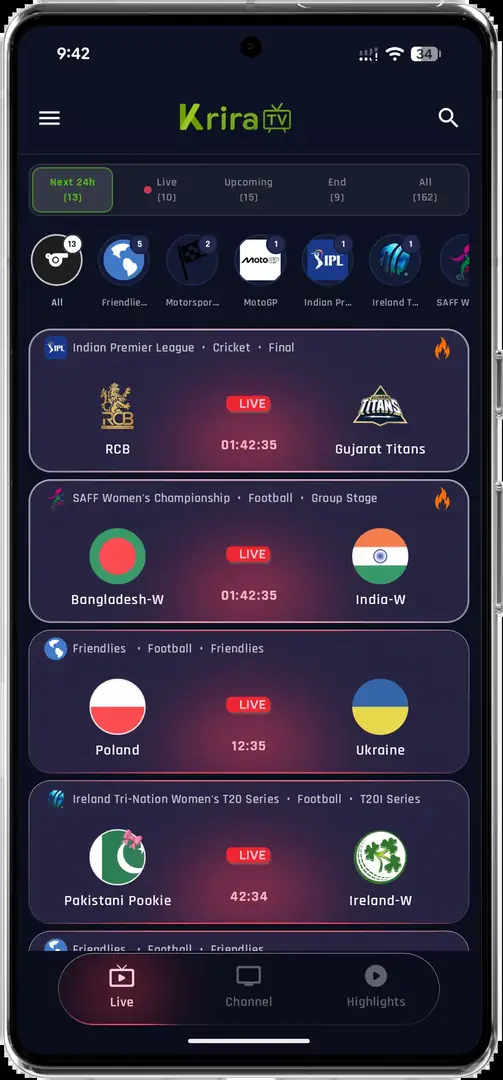
| No events or channels | Remote data or service status | Wait, refresh once and check an official update channel |
| One stream fails | Specific source | Try another listed event |
| Every stream buffers | Network or service capacity | Compare Wi-Fi and mobile data |
| Update will not install | Signature, package or damaged file | Verify source, byte size and SHA-256 |
2. Check for a Krira TV outage before reinstalling
A service-side incident can make a healthy installation look broken. If the app opens but event data, channels or video sources fail across several devices, pause local troubleshooting. Check the publisher-associated website and recent public notices. The Krira TV Facebook page has recently acknowledged download or opening difficulties, which is evidence that some failures can occur outside the user’s phone.
Do not repeatedly uninstall, clear storage or download files from random mirrors during an outage. Those actions cannot repair a remote server and can remove local settings or introduce an unrelated APK. Record the time, device, network and affected screen, then retry later. Use the publisher-associated release page for current release claims and treat social updates as status information rather than a download source.
If Krira TV fails on Wi-Fi and mobile data, on more than one device, and at the same stage, waiting for a service update is safer than changing Android security settings.
3. Test the connection without weakening security
Open another trusted streaming service or a normal website on the same device. If everything is slow, restart the router and device, move closer to the access point or use a stable alternative network. If other services work but Krira TV does not, briefly compare Wi-Fi with mobile data. A different result can reveal DNS, router filtering, ISP routing or captive-portal problems. Turn off an unnecessary VPN, custom DNS filter or ad-blocking network profile for one controlled test, then restore it. Do not install an unknown VPN just because a pop-up or forum post promises access. Also verify Android date and time are automatic; a badly incorrect clock can break secure connections. Krira TV Wiki does not recommend bypassing geographic rights, account rules or device security controls.
- Confirm another trusted app can reach the internet.
- Compare Wi-Fi and mobile data when available.
- Complete any hotel, school or public Wi-Fi sign-in page.
- Set Android date and time automatically.
- Avoid random DNS, proxy and VPN profiles.
4. When Krira TV opens but streams do not play
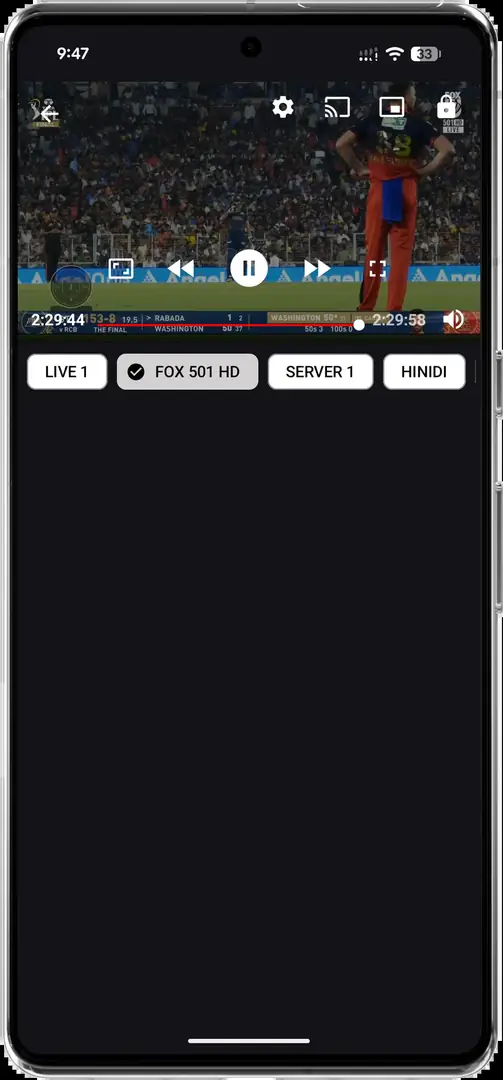
Try a second listed event before assuming the whole app is down. A single source can expire or become unavailable while the rest of the interface still works. If the player offers quality choices, begin with Auto or a lower resolution. A stable lower-quality stream is more useful than repeated buffering at 1080p on a congested connection. Leave and reopen the player once, then restart the app. Avoid rapid repeated taps because they can create overlapping player requests. If video appears but sound does not, check media volume, Bluetooth output and any external-player setting. If the app hands playback to SS Player or another player, reproduce the same stream in the built-in player when possible; that separates a source problem from an external-player configuration problem.
5. Restart, force stop and clear cache in the safe order
Close Krira TV from recent apps and open it again. If that fails, open Android Settings, choose Apps, select Krira TV and use Force stop. Restart the device before clearing anything. A restart can release a stuck media decoder, network connection or low-memory condition without deleting user data. Next, clear cache only. Cache contains temporary files and is normally safer to remove than storage. Do not choose Clear storage or Clear data as an early step because it resets the app and may remove preferences, favorites or sign-in state. If cache clearing fixes the problem only briefly, record the pattern; repeated failure may indicate a release bug or remote data issue rather than a need for daily cleanup.
- Close the appRemove Krira TV from recent apps and reopen it once.
- Force stopUse Android Settings > Apps > Krira TV > Force stop.
- Restart AndroidRestart the phone, tablet, TV or emulator.
- Clear cacheRemove temporary cache, not app storage.
- Retest one pathOpen the event list and test one stream before making another change.
6. Confirm the current version and update source
The publisher-associated release page listed v6.2.6 when checked on July 30, 2026. The stable APK URL returned HTTP 200 with Android package MIME, 11,652,593 bytes and SHA-256 05CE77D1179977E12C993732D41BAB3E271D0D733065C35FFA56F30B7EC95F45. Compare these details before opening a sideloaded installer. A matching hash confirms byte consistency with the checked file; it is not a malware-free guarantee.
A Google Play listing by REGULEX LTD also existed under package com.kriratv.livesport. The Play listing and direct APK are separate update paths. Android may reject an in-place update when the installed build uses a different package identity or signing certificate. Follow the Krira TV update guide, try Update before uninstalling, and stop if the installer unexpectedly offers a separate Install action while the old app remains present.
| Verified field | Value checked July 30, 2026 |
|---|---|
| Source-listed version | 6.2.6 |
| Direct APK size | 11,652,593 bytes (about 11.11 MiB) |
| SHA-256 | 05CE77D1179977E12C993732D41BAB3E271D0D733065C35FFA56F30B7EC95F45 |
| Google Play package | com.kriratv.livesport |
| Android requirement | Android 6.0+ on the release page |
7. Fix Krira TV problems on Android TV and Fire TV
On televisions, confirm that the device is Android TV, Google TV or Fire OS before treating a phone APK as compatible. Samsung Tizen and LG webOS televisions cannot install Android APK files directly. On a compatible TV device, free storage, restart the device and test remote focus on the home screen before opening playback. A TV may have enough storage for the APK but not enough working space to unpack and update it. Delete old installers and disposable cache, not application data. If navigation works with a mouse but not the remote, the current interface may not fully support TV focus. Do not install random “TV patched” APKs. Use the Smart TV guide or Firestick guide for device-specific installation checks.
8. Reinstall only after preserving evidence
Reinstalling is a last local step, not a universal fix. First record the installed version, source, error message and any settings you want to restore. If Android offers an in-place update from the same trusted release line, use it before uninstalling. A clean reinstall can remove local data and still leave a server outage unchanged. If you decide to reinstall, remove the old app, restart Android, download again from a verified source, compare the exact size and SHA-256, and review the installer and permissions. Stop if the package details differ from the expected record or Android shows a warning you do not understand. Never disable Play Protect simply to force an installation.
9. Collect useful details before asking for help
A useful problem report should include the device model, Android or Fire OS version, Krira TV version, installation source, network type, exact error and the last step that worked. Say whether another event plays and whether the same failure occurs on another network. Do not send an APK file, password, full account token or other sensitive information. If the problem began immediately after an update, mention whether Android displayed Update or Install and whether the previous build came from Google Play or a direct APK. These facts help separate signing conflicts, compatibility issues, corrupted downloads and remote incidents. For source corrections, use [email protected]; for service availability, consult the publisher’s public channels.
Android TV 12, Krira TV v6.2.6, app opens, event list loads, every stream buffers on Wi-Fi and mobile hotspot, first seen July 30 at 18:00 local time.
Krira TV not working FAQ
Why is Krira TV not opening?
Restart the device, confirm Android compatibility and the installed version, then force stop and clear cache. If the app still closes immediately, verify the APK source and consider a clean reinstall only after preserving settings.
Why does Krira TV keep buffering?
Test another event and another network, lower playback quality, close VPN or filtering profiles for one controlled test, and check whether multiple devices fail. Widespread failure may be service-side.
Does reinstalling fix a Krira TV outage?
No. Reinstalling can fix damaged local files, but it cannot repair a remote server, unavailable event source or wider service incident.
Should I clear Krira TV data?
Clear cache first. Clear storage or app data only as a later step because it resets the app and may remove preferences, favorites or sign-in state.
What version should I check?
The publisher-associated release page listed v6.2.6 on July 30, 2026. The direct APK checked by this site was 11,652,593 bytes with the SHA-256 shown above.
Why will Krira TV not update?
Common causes include a damaged download, insufficient storage, incompatible Android version, different package identity or signing-certificate mismatch between the installed app and the new file.
Why does Krira TV work on my phone but not my TV?
The TV may not run Android, may lack storage, may block sideloading or may not support remote focus in the current app interface. Confirm the TV operating system before installing an APK.