Will Krira TV work on an Android TV box?
The useful question is not whether a box is advertised as smart, but whether it runs Android TV or Google TV and exposes the Android package installer. Open Settings and look for Android version, Google Play Store, Apps, Security or Install unknown apps. A box with only Roku, Samsung Tizen, LG webOS or Apple TV menus cannot install an Android APK directly.
Android TV boxes vary in chipset, Android version, memory, storage and remote design. The source record lists Android 6.0 or later, but that minimum does not guarantee a comfortable television layout. Keep several hundred megabytes free, use stable Wi-Fi or Ethernet and test the box's directional pad before making the app part of your viewing setup.
A certified Android TV or Google TV box is easier to maintain than a modified firmware image. Avoid boxes that require disabling several security controls, installing an unknown launcher or using a bundled EXE, ZIP or XAPK just to reach the Krira TV name. If the box cannot show a clear package prompt, stop and verify the path elsewhere.
| Device platform | Direct APK path | Practical choice |
|---|---|---|
| Android TV / Google TV box | Usually available when sideloading is enabled | Check OS, storage and remote focus |
| Android-based generic box | May work, but firmware and permissions vary | Verify package prompts and update support |
| Roku, Samsung Tizen or LG webOS | No direct Android APK installation | Use casting or a separate Android TV device |
| Windows laptop | Not a native APK install | Use the PC emulator guide instead |
Two boxes with similar marketing labels can expose very different installers. Confirm the OS and the exact permission screen before downloading or changing security settings.
Verify the Krira TV APK before moving it to the box
Complete the first check on a phone or computer where the final host, filename, byte size and checksum are easy to inspect. The associated download page remains the source-linked record for v6.2.6. On the latest review, the linked file was app-release.apk at exactly 11,652,593 bytes with SHA-256 05CE77D1179977E12C993732D41BAB3E271D0D733065C35FFA56F30B7EC95F45.
If a mirror changes the filename, adds an installer wrapper, requests payment or redirects through an unrelated domain, stop. The Google Play listing reviewed on August 16, 2026 used package com.kriratv.livesport and showed v7.0.0; because its package and release identity differ from the source-linked APK record, this guide does not present it as the same file or as a verified sideload download.
A SHA-256 comparison answers only whether two files contain the same bytes. It does not prove developer identity, malware-free behavior, content rights or future safety. Keep the original file record, scan it with the protections available on your device and remove copied APK files after installation is complete.
- Source page: kriratv.com/download/
- Checked record: Krira TV v6.2.6
- Checked file: app-release.apk, 11,652,593 bytes
- Checked SHA-256: 05CE77D1179977E12C993732D41BAB3E271D0D733065C35FFA56F30B7EC95F45
- Evidence boundary: a matching hash supports file consistency, not safety or official ownership
A short code hides the destination and can be reassigned. Use the visible source page or a trusted local transfer, then check the final host and file details.
Install Krira TV on an Android TV box with USB or local transfer
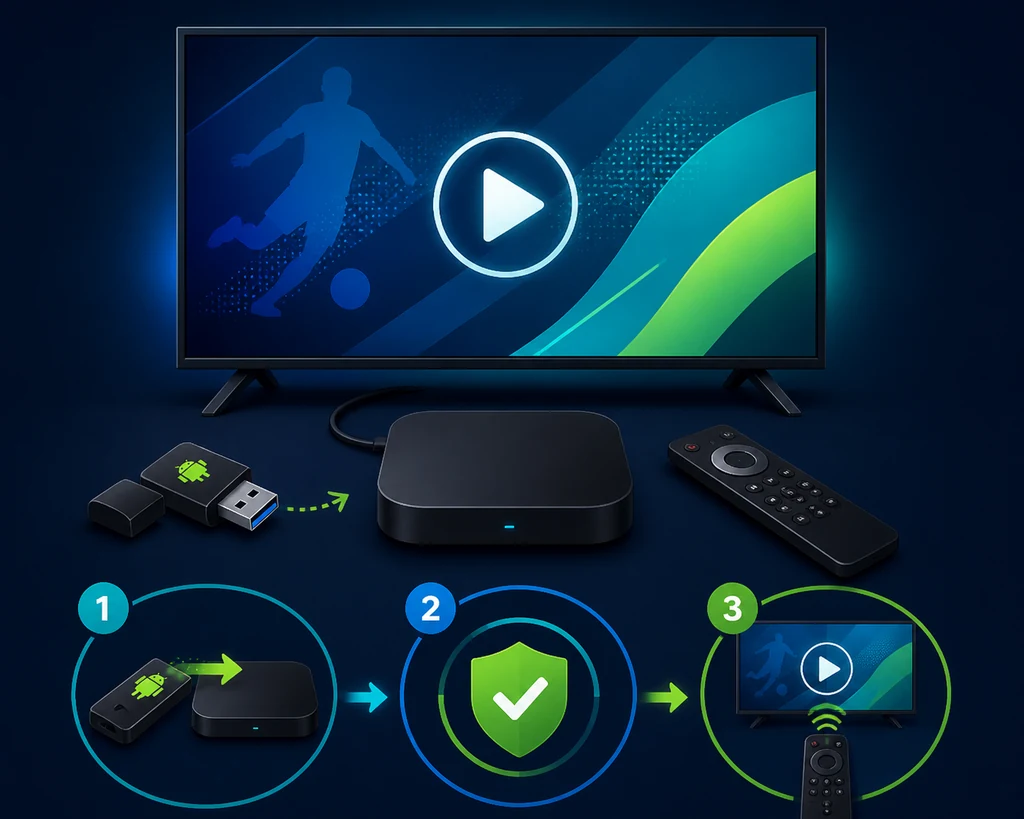
USB is usually the clearest route because you can download and verify the APK away from the television browser. Copy only the checked file to a clean drive or use a reputable file-transfer app already installed from the box's official store. Do not add unrelated installers to the same transfer folder.
Menu labels differ between Android TV versions. The permission may appear under Security and restrictions, Special app access or Install unknown apps. Grant it only to the file manager or transfer app that opens the APK, complete the install, and then revoke the permission.
- Download and compareConfirm the source host, v6.2.6 label, 11,652,593-byte size and SHA-256 before copying the file.
- Transfer the APKCopy app-release.apk to a clearly named USB folder or send it through a trusted local-transfer app.
- Allow one installerEnable Install unknown apps only for the file manager or transfer app you selected.
- Install and inspectOpen the file, check the app name and Android prompt, then choose Install only when the package looks expected.
- Revoke and testDisable the permission, remove the copied file when ready and test focus, Back, audio, orientation and one short playback session.
Fix remote focus, portrait layout and playback controls
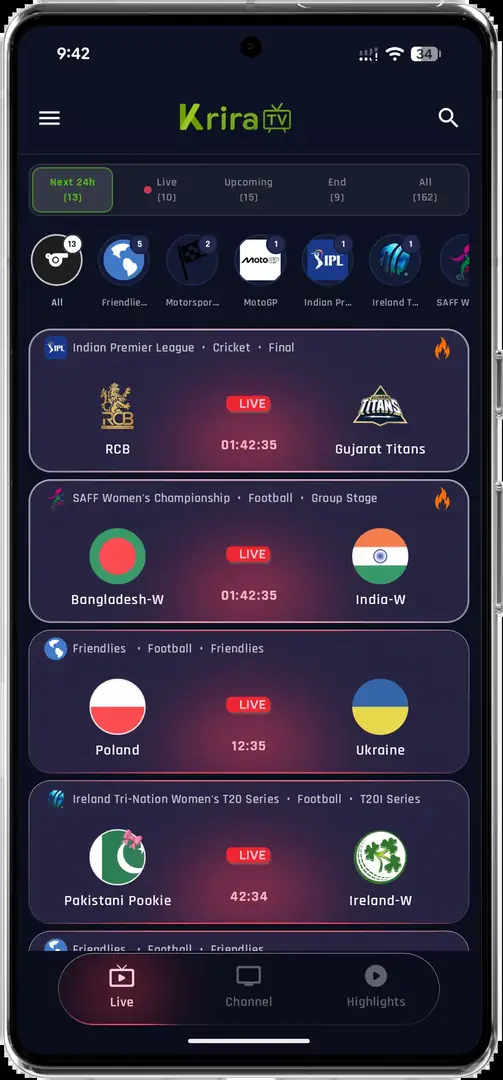
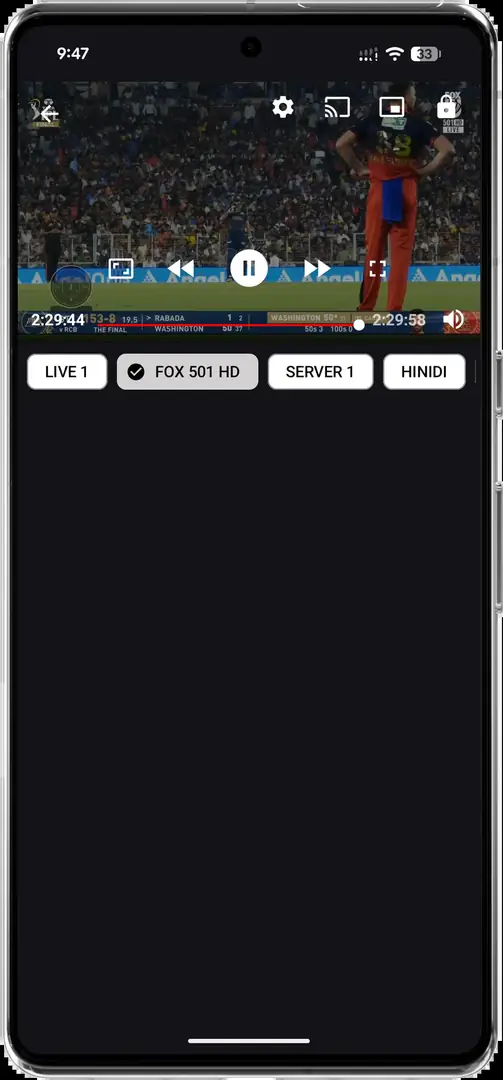
An Android TV box can install a phone-oriented APK successfully while still offering a poor ten-foot experience. The available Krira TV interface is portrait-oriented in the checked screenshots, so expect vertical layout, small touch targets or controls that are easier to tap than to select with a directional pad.
Test the complete path with the remote: open an event, move across tabs, select a playable item, return with Back, change volume and exit the app. If focus becomes trapped, try Back before using mouse emulation. A paired Bluetooth mouse can be a temporary accessibility aid, but unknown remote-control APKs can request broad device access and should be avoided.
Playback depends on the app service, stream, codec support, Wi-Fi and box hardware. Try Ethernet or 5 GHz Wi-Fi, close heavy background apps and test a lower quality option before changing system settings. A channel name or event tile is not a guarantee of availability, geographic rights or continuous uptime.
Keep the box only if the essential actions work with the remote you actually use. A touch-oriented layout may need a legitimate mouse or casting fallback.
Update or remove Krira TV without losing the evidence trail
For a future update, return to the source page and repeat the version, host, byte-size and checksum checks. Android normally updates an existing app only when package identity and signing certificate match. If Android offers to install a separate app or reports a signature conflict, preserve the current app data and inspect the update guide before uninstalling.
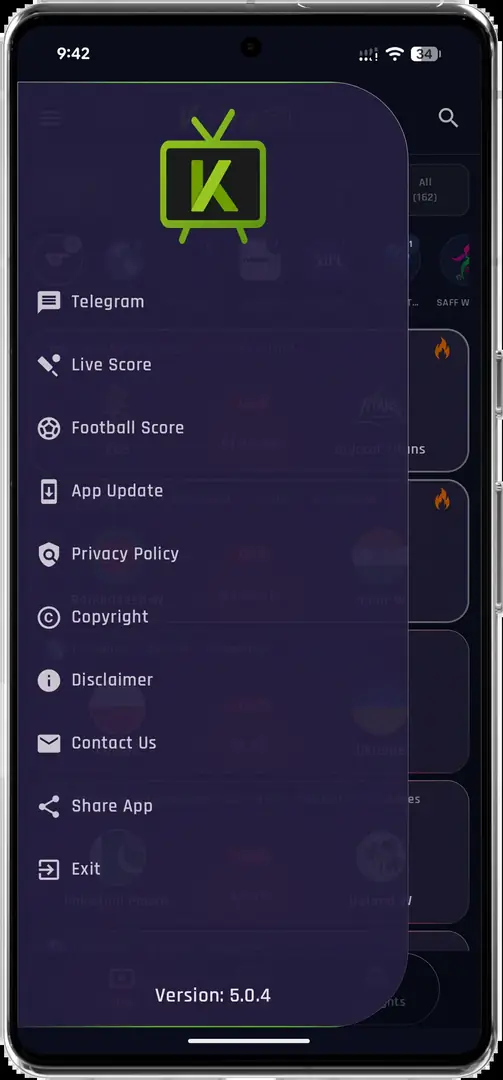
To remove the app, use Settings > Apps > Krira TV > Uninstall. Deleting the APK from Downloads does not uninstall the app, while uninstalling can delete local preferences. Revoke unknown-app permission from the file manager or downloader and remove leftover installers from USB or internal storage.
Rollback is a last resort because an old build may no longer connect to its services or may reintroduce fixed bugs. A defensible rollback needs a recorded source URL, version, date, size and checksum; the versions guide keeps older search references separate from the current source record.
- Keep unknown-app permission disabled when you are not installing anything.
- Do not treat a higher version number as genuine without a documented source.
- Keep the current working install until the replacement opens and navigates correctly.
- Remove copied APK files and revoke transfer permissions after the check is complete.
- If the box cannot expose the source URL or package prompt clearly, skip the installation.
Krira TV Android TV box FAQ
Can I install Krira TV on any Android TV box?
No. The box needs an Android-based operating system, enough storage, a compatible Android version and a usable APK installer. Firmware, chipset and remote behavior can still make two boxes behave differently.
What is the latest checked Krira TV version for an Android TV box?
The source-linked APK record checked on August 16, 2026 remained v6.2.6, with 11,652,593 bytes and the recorded SHA-256 above. Google Play showed a separate v7.0.0 package identity, so it is not presented as the same sideload file.
Can I use a Downloader code for Krira TV?
This site does not publish a numeric code because it hides the destination and may be reassigned. Use the visible source page or a trusted local-transfer path and inspect the final host.
Why does my Android TV box say App not installed?
Common causes include a signature conflict, damaged transfer, insufficient storage, incompatible Android version or a package that is not the checked APK. Verify the file again and review the update path before uninstalling.
Why can my remote not select Krira TV controls?
The available interface is phone-oriented and may expose touch-sized controls or portrait layout. Test Back and directional focus, then use a legitimate paired mouse or casting only as a fallback.
Does a matching SHA-256 prove that Krira TV is safe?
No. It shows that the downloaded bytes match the checked file. It does not prove publisher identity, malware-free behavior, content rights or future safety.