
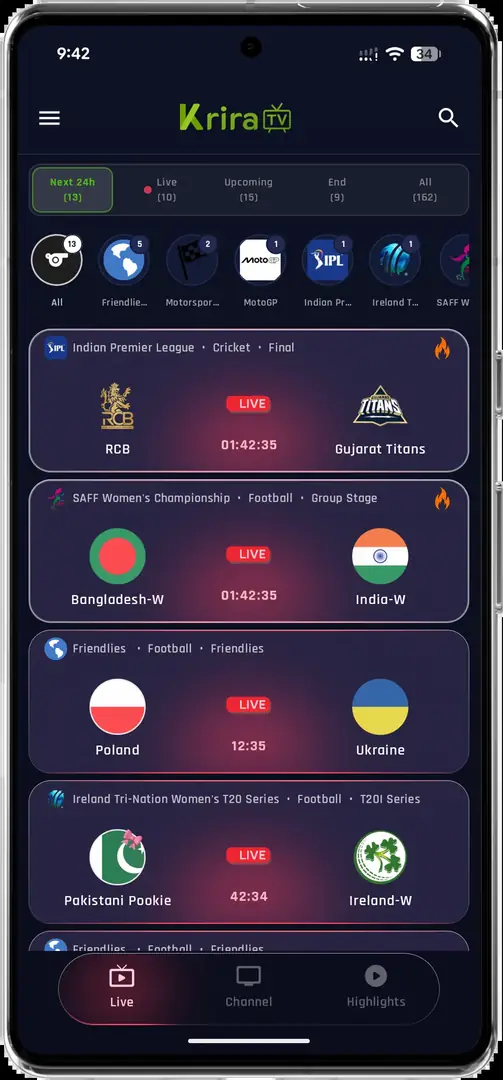
Can Krira TV work on your Samsung TV?
The label Smart TV does not identify one operating system. Samsung Smart TVs use Tizen, while many Sony, TCL, Hisense and Philips models use Android TV or Google TV. Krira TV on Samsung TV uses an Android APK, which Tizen cannot install. The logo on the bezel is less useful than the operating-system name shown in Settings.
Open the Home screen and select Apps or Search. If you can search Samsung Apps but cannot find Krira TV, treat that as a platform limitation rather than a missing download link. An APK cannot be made compatible by changing its filename, moving it to a USB drive or granting a browser permission. A separate Android device or a cast from a phone is the practical route.
| Platform | Direct APK install? | Practical Krira TV route |
|---|---|---|
| Samsung One UI Tizen | No | Cast from a phone or use an Android TV/Fire TV device |
| Android TV or Google TV | Usually | Use the existing Smart TV installation guide |
| Amazon Fire TV | Often | Use the Firestick guide and verify every source URL |
| Roku or Apple TV | No | Use platform-supported apps or a compatible cast |
| Samsung TV with an HDMI box | On the box | Run the APK on the box; the Samsung panel is only the display |
A Samsung screen can display Android TV through an HDMI device, but that does not turn the built-in Tizen system into Android.
Confirm Tizen and the Samsung Apps boundary
Samsung's official support guidance says current Smart TVs use One UI Tizen and install apps through the TV's Apps search. It also notes that a Samsung account, an internet connection and model-specific menus may be required. Those instructions apply to packages published for Samsung's platform. They do not provide an Android APK installer.
Use the following check before downloading anything. If your television shows Android TV, Google Play or Install unknown apps, follow the Android TV guide instead. If it shows Samsung Apps, Smart Hub or One UI Tizen, stop the APK path and choose casting or an external player. This quick check prevents wasted downloads and removes pressure to use an untrusted conversion service.
- Open the app catalogPress Home, open Apps and search for Krira TV. A missing listing is meaningful evidence on Tizen.
- Read the platform labelCheck Settings > Support or About for One UI Tizen, Tizen or Samsung Smart Hub.
- Check for Android controlsGoogle Play and Install unknown apps indicate a separate Android environment, not the built-in panel.
- Choose a routeUse casting for a session, or connect an Android TV device for a repeatable remote workflow.
- Keep permissions narrowNever enable developer or unknown-source settings on Tizen for an APK that the TV cannot run.
Option 1: use an Android TV box or Fire TV Stick
An HDMI device is the most consistent solution when you want a remote, a home-screen shortcut and repeatable playback. The box or stick runs the Android APK; the Samsung TV supplies the picture and sound. Select a device with enough storage, a security update and an official app store for the file-transfer or Downloader app you plan to use.
Install the APK on the external device using the existing Android TV or Firestick instructions. Verify the source page and file before transferring it, grant unknown-app permission only to the selected installer, then revoke that permission after the first successful launch. The Samsung remote may control volume and input, but the Android device's remote usually handles app focus more reliably.
- Connect by HDMIPlug the Android TV box or Fire TV Stick into the Samsung TV and select the matching HDMI input.
- Install a trusted transfer toolUse Google Play or the Amazon Appstore to install a file manager or Downloader app.
- Transfer the APKUse a verified source URL, USB drive or local transfer; do not rely on an opaque shortcut code.
- Test the remoteOpen an event, move focus, return from the player and adjust volume before a live session.
- Remove temporary accessRevoke unknown-app permission and delete the installer file when the setup is complete.
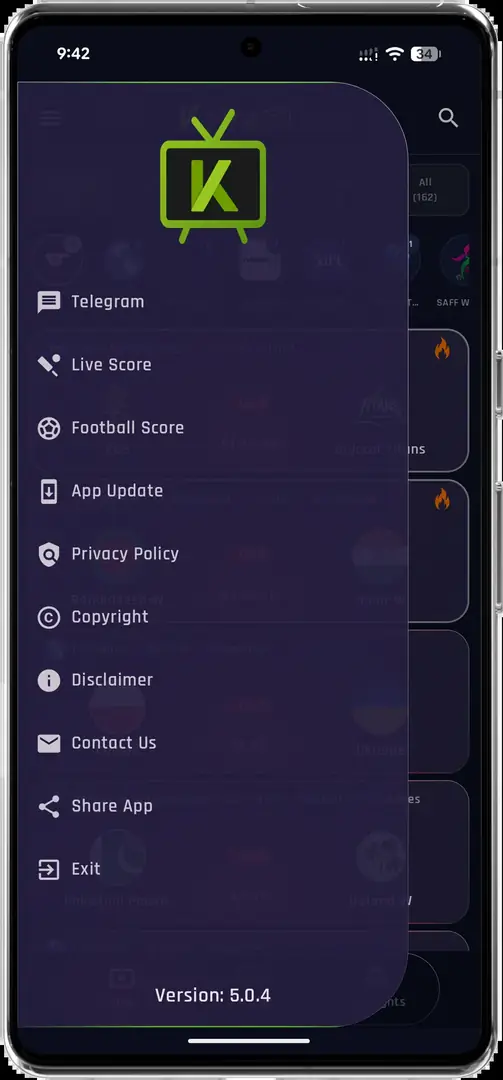
Option 2: cast Krira TV from an Android phone
Casting keeps the APK on an Android phone and sends playback to a compatible receiver. The Samsung TV must support the same casting method, have the feature enabled, or be connected to a Chromecast or Google TV device. Both devices should use the same Wi-Fi network. Casting is convenient for a one-off match, but the phone remains part of the playback chain and its screen, battery and notifications can affect the experience.
Start with the phone and TV on the same network, open the Krira TV player, and look for a Cast icon or a system screen-share control. If the app exposes no cast target, use the phone's built-in screen sharing only when the receiver supports it. Never install a random mirror app that asks for accessibility, device-admin or VPN access just to make one stream appear.
- Join one Wi-Fi networkConnect the Android phone and the Samsung TV or Chromecast receiver to the same network.
- Start a short previewOpen a legitimate test stream first so you can stop without missing an event.
- Select the receiverUse the app's Cast control or the phone's supported screen-share menu, then choose the TV.
- Lock the phone carefullyKeep the phone charged, silence notifications and avoid switching networks while casting.
- Stop from the same controlEnd casting in the app or system panel before closing the player or turning off the TV.
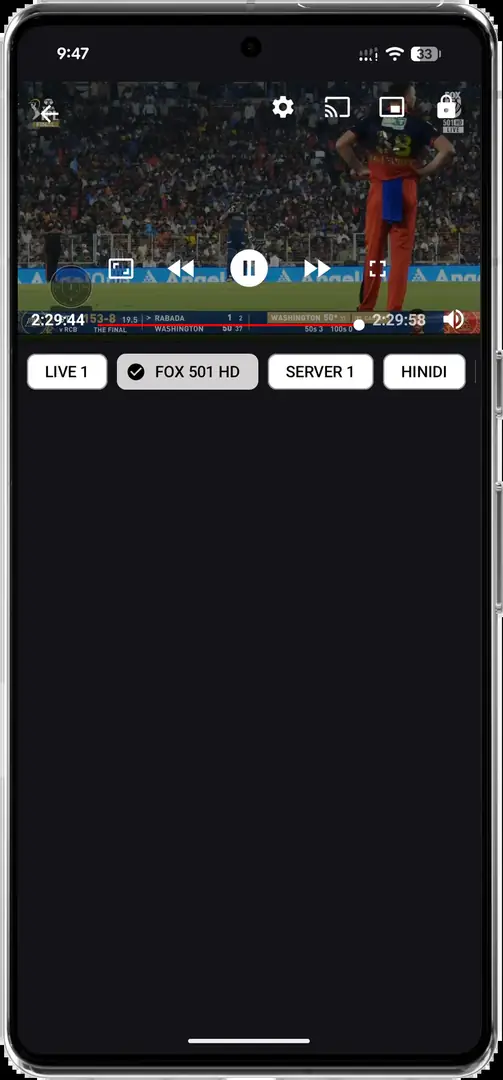
Fix common Samsung TV playback and setup problems
If the Samsung TV cannot find Krira TV, that is expected when the built-in system is Tizen. Switch to the external-device or casting route instead of repeating the search. If an Android box shows a parse error or App not installed, remove the transferred copy, download again from the disclosed source and check the file type, size and Android compatibility before trying another installer.
For casting problems, restart the receiver, confirm both devices share the same Wi-Fi band and test a short video from another supported app. A black picture with audio can reflect a codec or stream issue; buffering across every app points more often to the network. If the image is portrait or the remote cannot focus controls, treat that as a limitation of a phone-oriented APK, not a reason to install an unknown remote-control service.
- Stop repeating the wrong pathA Tizen TV will not become Android because the APK was downloaded again.
- Isolate the receiverTest the HDMI device or cast receiver with another supported video service.
- Clear only temporary dataOn Android, clear cache before deleting app data or uninstalling a working build.
- Remove unsafe permissionsRevoke unknown-source, accessibility or device-admin access that is no longer required.
| Symptom | Likely cause | First safe action |
|---|---|---|
| No Samsung Apps listing | Tizen package boundary | Use casting or an HDMI Android device |
| APK parse error on the box | Damaged file or incompatible Android build | Redownload and verify the file before retrying |
| Cast target missing | Different Wi-Fi or unsupported receiver | Join one network and verify receiver support |
| Portrait or poor focus | Phone-oriented interface | Use the external device remote or cast from the phone |
| Black screen or buffering | Codec, stream or network issue | Test another stream and another legitimate app |
Samsung TV FAQ
Can I install the Krira TV APK directly on a Samsung Smart TV?
No. Samsung Smart TVs use Tizen, while an APK is an Android package. Use a compatible Android TV or Fire TV device connected by HDMI, or cast from a supported phone.
Why is Krira TV missing from Samsung Apps?
Samsung Apps lists packages made for the TV's Tizen platform. A missing listing does not mean you need another APK mirror; it usually means the Android package is not a native Tizen app.
Can I use Krira TV on Samsung TV without an APK?
Yes, when you cast or mirror playback from a compatible phone or computer. The receiver must support the selected casting method, and both devices normally need the same Wi-Fi network.
Is an Android TV box better than casting?
An Android TV box is usually better for repeat viewing because it has its own remote and app storage. Casting is faster for a one-off session but keeps the phone involved in playback.