What Krira TV Chromecast casting can and cannot do
Casting sends or mirrors a playback session from a phone to a compatible receiver. It does not install the Krira TV Android APK on the television, convert an APK into a Tizen or Roku package, or prove that a stream is licensed in your location. The phone remains the starting point, and the receiver only displays what the chosen casting path can deliver.
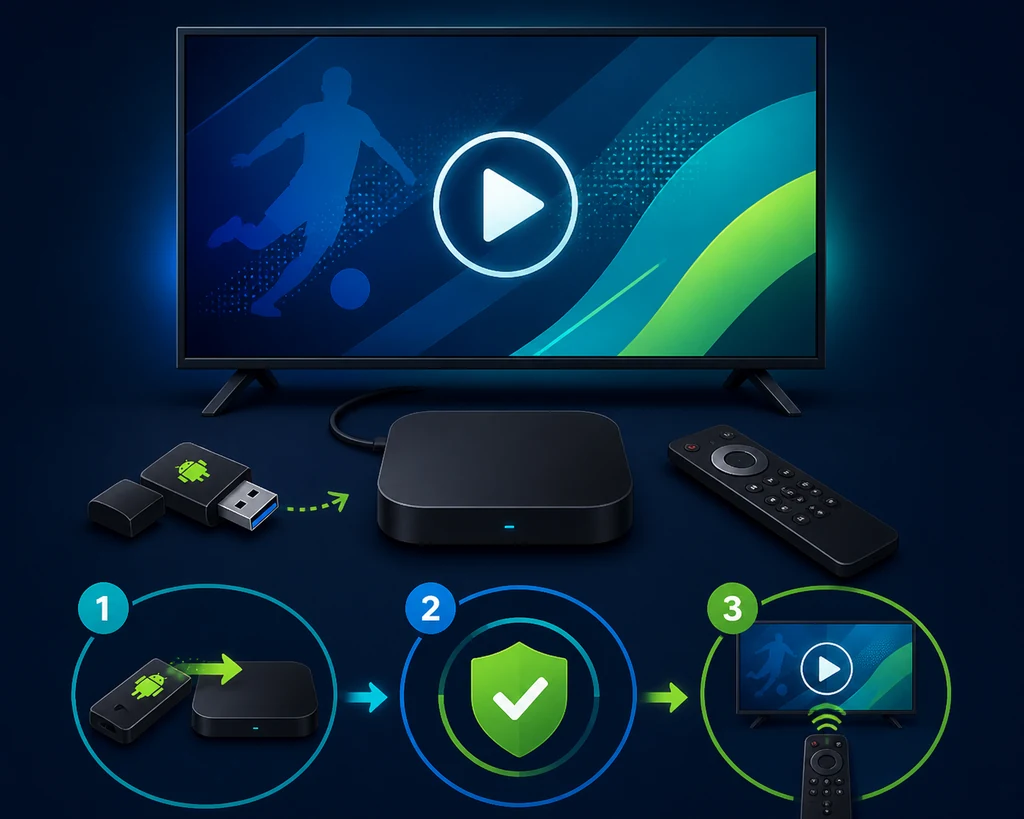
A Chromecast, Google TV Streamer or television with Google Cast is a different environment from an Android TV box. A box can run an Android package locally when its firmware and permissions allow it; a Chromecast workflow usually asks the phone app to expose a Cast target. That distinction matters when you troubleshoot. A successful phone session does not guarantee a native TV app, and a missing Cast button is not fixed by downloading a second APK.
Use casting when you want a quick big-screen session and already have a compatible receiver. Choose the Android TV or Firestick guides when you need a remote-friendly app installed on the external device. Choose the Samsung TV guide when the built-in panel uses Tizen. These are different jobs with different inputs and outputs, so the steps should not be mixed.
| Path | Where Krira TV runs | Best fit |
|---|---|---|
| Chromecast casting | Phone app, then compatible receiver | One-off viewing or a simple phone-led session |
| Android TV box | External Android device | Repeat viewing with a dedicated remote |
| Fire TV Stick | External Fire OS device | Users who already use Fire TV and Downloader |
| Samsung Smart TV | Built-in Tizen panel | Use casting or HDMI; do not sideload an Android APK |
| Phone screen mirroring | Phone renders the whole screen | Fallback when the player has no Cast control and the receiver supports mirroring |
A Cast connection changes where playback is displayed. It does not change the operating system, package identity, publisher, content rights or safety status of the app.
Check the phone, app and Chromecast before you start
Google's current Cast instructions list Chromecast, Google TV Streamer (4K) and TVs with Google Cast as supported destinations. They also require a compatible mobile device, a current Cast-enabled app and a shared Wi-Fi network. The exact menus differ by phone and receiver, but the same-network check is the first useful test. Guest networks, mesh isolation, VPN routing and automatic network switching can make two devices look connected while preventing discovery.
On Android, open Wi-Fi settings and confirm the network name, then temporarily disable a VPN or adaptive network feature if it keeps moving the phone between isolated networks. On iPhone, review Local Network access for the app when iOS asks for it. Keep the receiver awake, select the correct HDMI input if it is a separate Chromecast, and update the app only from a store or source you can identify. Do not treat a generic app named Krira TV in a store as proof that it is the same package described by this site.
Before a long match, run a 30-second test. Start a low-risk preview, check that audio follows the picture, lock the phone only after the session is stable, and stop casting before switching networks. This isolates discovery, playback and receiver issues instead of changing several permissions at once.
- Identify the receiverConfirm Chromecast, Google TV Streamer or Google Cast built into the television; record the receiver name shown in Google Home or the TV settings.
- Join one Wi-FiConnect the phone and receiver to the same non-isolated network and avoid a guest SSID during the first test.
- Check the app pathOpen the Krira TV player and look for its Cast control; a general screen-share option is a separate fallback.
- Keep access narrowAllow only the local-network or nearby-device permission needed for discovery, and avoid unknown accessibility or device-admin apps.
- Test brieflyPlay a short preview before relying on the connection for a live event or a long viewing session.
How to cast Krira TV from Android
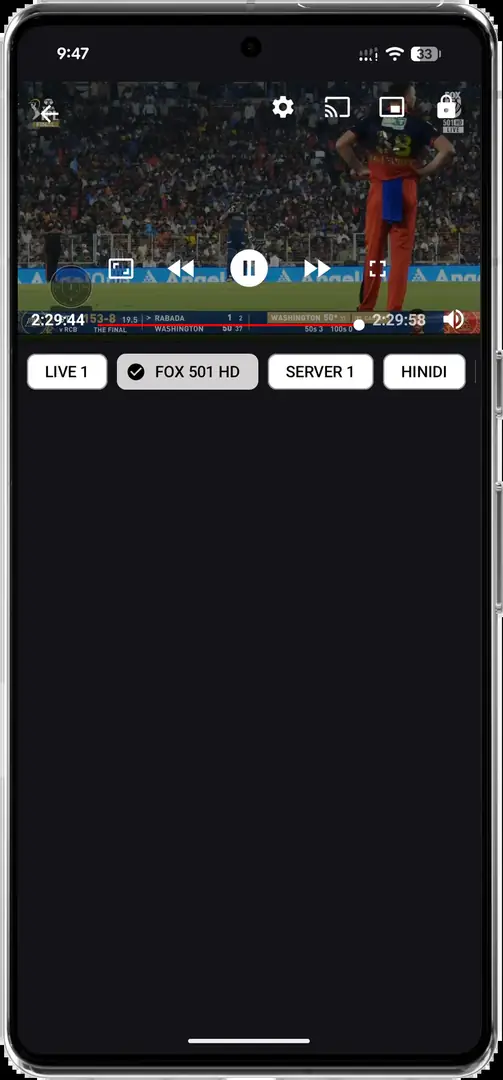
Start from an Android phone where the Krira TV player already opens. Casting cannot repair a broken APK, an unavailable event or a source page you do not trust, so solve those issues on the phone first. Once a short video plays, keep the receiver and phone within the same network and follow the Cast control exposed by the app. Google notes that the Cast button is not in the same place in every Cast-enabled app; it may sit in the player toolbar, an overflow menu or a playback overlay.
When you tap the button, select the receiver by the name shown in the list and wait for the control to show a connected state. Avoid tapping the action repeatedly because each tap can create a second discovery attempt or close the player overlay. If the receiver appears but playback stays on the phone, stop and test another short item, then check whether the app is sending a Cast session or only offering a local screen-share action.
Keep the phone charged and silence notifications if you use mirroring. A true Cast session may let the phone sleep or act as a remote, while screen mirroring keeps the full phone display in the path. The difference affects battery life, privacy and what appears on the television.
- Open the playerChoose a short event or channel that you are allowed to view and wait until the phone has a stable picture and audio.
- Tap CastUse the player Cast icon or overflow menu, then select the Chromecast or Google Cast receiver you identified.
- Wait for confirmationThe control should change to a connected state and the receiver should show the playback surface; do not start a second session.
- Check controlsPause, resume, adjust volume and return to the event list once so you know which device owns each control.
- Disconnect cleanlyTap the Cast control and choose Disconnect before closing the player, changing Wi-Fi or turning off the receiver.
How to cast from iPhone or iPad
An iPhone or iPad cannot install an Android APK. It may still send a video from a Cast-enabled app, but support must come from the app and receiver combination. On iOS, enable Local Network access when the app requests it, keep the phone and Chromecast on the same Wi-Fi, and look for the Cast icon inside the player. Google documents iOS support for compatible Cast-enabled apps; that documentation does not establish a native Krira TV iOS release.
If Krira TV does not expose a Cast button on iPhone, do not download an IPA, enterprise profile or configuration file from an unknown site. Try the receiver's supported AirPlay or screen-mirroring path only when the television or Chromecast setup explicitly supports it. Mirroring can reveal notifications, browser tabs and other private content, so start a short test with notifications hidden and stop the session from the system control when finished.
The cleanest iPhone answer may be to use the browser, official platform app or a separate Android device that you can verify. The iOS guide explains the APK boundary; this page focuses on the casting decision and does not claim an official native iPhone package.
- Check Local NetworkAllow the app to discover nearby Cast devices only when the iOS permission prompt matches the app you opened.
- Use the in-player controlPrefer a visible Cast button in the player; a random screen-share utility is not the same integration.
- Confirm the receiverSelect the Chromecast by its known name and verify the picture before locking the phone.
- Protect private contentHide notifications and avoid mirroring unrelated tabs, messages or account screens.
An Android APK cannot be converted into a trustworthy iPhone app by renaming it or installing an unsigned profile. Use a supported Cast or screen-share path instead.
When the Cast button is missing
A missing Cast button is a useful diagnostic signal. It can mean the app is not Cast-enabled, the player has not loaded a compatible stream, the phone cannot discover the receiver, or a permission or network boundary is blocking discovery. It does not automatically mean that the APK is outdated or that you need a special activation code.
First check the simplest variables: phone and receiver network names, receiver power, correct HDMI input, VPN state and Local Network permission. Close and reopen the player after the receiver is awake. If another known Cast-enabled app can discover the same receiver while Krira TV cannot, the likely boundary is app support rather than the Chromecast hardware. In that case, use the phone's supported mirroring option or switch to an Android TV device, and record that the fallback is a different workflow.
Do not grant accessibility, notification-reading, device-admin or VPN permissions to an unknown app merely to add a Cast icon. Those permissions can expose more of the phone than a single playback session requires. Also avoid short Downloader codes that hide the final destination. A visible source URL, package prompt and reversible permission are easier to review.
- Test another Cast appUse a known Cast-enabled app only to isolate receiver discovery; do not infer that it proves Krira TV support.
- Restart the chainClose the player, restart the receiver and reopen the app after both devices rejoin the same Wi-Fi.
- Choose a fallbackUse phone mirroring when appropriate, or move the APK workflow to Android TV or Fire TV instead of forcing Tizen.
- Undo temporary accessRevoke local-network, unknown-source or utility permissions that are no longer needed.
| Observation | Likely boundary | Safe next action |
|---|---|---|
| No receiver appears in any app | Wi-Fi isolation, receiver asleep or permission issue | Join one network, wake the receiver and recheck local-network access |
| Receiver appears in another app only | Krira TV player may not expose Cast | Use supported screen sharing or an Android TV fallback |
| Cast connects but phone keeps playing | Mirror or local playback path instead of a Cast session | Check the player control and stop duplicate sessions |
| Connection drops when phone sleeps | Screen mirroring or battery restriction | Keep the phone awake for the test or use a dedicated receiver app |
| A site offers a Cast APK | Unverified third-party utility | Do not install; keep the original app and source boundary |
Fix buffering, black video and disconnects
Once a Cast session starts, separate playback faults from discovery faults. If the receiver never appears, investigate Wi-Fi and Cast support. If it appears but the picture buffers, compare a short item on another supported app and check whether the phone is moving between networks. If every app buffers, improve the network path or test Ethernet for the receiver before changing Krira TV permissions.
A black picture with audio can point to a stream, codec or receiver rendering issue. Try a lower quality option, close other heavy apps and restart the session. Do not repeatedly clear data, reinstall an APK or enable unknown settings when the fault is limited to a single stream. If the player is portrait-oriented or controls are too small, that is a phone-first interface limitation; a certified Android TV device may offer a more usable remote experience.
Disconnects after a few minutes can come from battery optimization, a weak Wi-Fi band, a sleeping phone or a receiver that lost power. Keep the phone charged, disable only the battery restriction that affects the test, and return the setting afterward. Stop the Cast session from its own control rather than pulling the HDMI cable or force-stopping several apps at once.
| Problem | What to compare | First recovery |
|---|---|---|
| Buffering in every app | Receiver network and distance | Move to a stable network or Ethernet and retest |
| Buffering only in Krira TV | Stream or app path | Try a short item or lower quality; do not invent a new APK |
| Black video with audio | Codec, stream and receiver | Restart the session and test another supported item |
| Drops when screen locks | Mirror versus Cast behavior | Keep the phone awake for mirroring or use a dedicated receiver |
| Portrait or tiny controls | Phone-oriented layout | Use phone controls, a legitimate mirror path or Android TV fallback |
File-integrity evidence can tell you whether bytes changed. It cannot prove that a stream is available, that a codec is supported or that casting is authorized in your location.
Casting versus installing on a TV
Casting is usually the smallest change: the APK stays on a phone, the receiver displays the session and you can disconnect without changing the television's software. Its trade-offs are phone battery, notifications, network dependence and a possible lack of app-level Cast support. It is a good fit when you want a single session and the receiver already appears.
Installing on an Android TV box or Fire TV Stick creates a separate playback endpoint. It can be better for repeat viewing, a dedicated remote and a stable home-screen shortcut, but it adds an APK transfer, unknown-app permission, storage and update responsibilities. Follow the Android TV Box guide or Firestick guide for those paths. A Samsung Tizen panel, Roku or Apple TV should not be treated as Android simply because an HDMI device can be connected to it.
Choose the route that makes the source and permissions easiest to review. If casting works, do not add a permanent installer just to avoid one phone tap. If casting cannot work because the app has no supported Cast path, use a known Android environment or a platform-supported service instead of an opaque converter.
| Decision | Choose casting when | Choose an external Android device when |
|---|---|---|
| Setup effort | A receiver already exists and the phone app plays | You are willing to verify and maintain a separate device |
| Controls | Phone controls are acceptable | You need a repeatable directional remote |
| Privacy | You can keep notifications and unrelated content off the TV | You want the phone out of the playback chain |
| Troubleshooting | Network discovery is straightforward | The app has no Cast control but runs on Android TV or Fire TV |
| Platform boundary | The TV or receiver supports Google Cast | The built-in TV uses Tizen, Roku or webOS |
Privacy, rights and safety boundaries
Casting can expose the phone screen, notifications and account context to everyone viewing the television. Start with a short test, hide notifications and disconnect when finished. Keep local-network and nearby-device permissions limited to the app you are actually testing. A third-party mirror utility with accessibility, VPN, device-admin or notification access deserves a higher level of scrutiny than a normal Cast button.
Krira TV Wiki is an independent guide. It does not operate Krira TV, verify every stream, grant viewing rights or guarantee uptime. A Cast connection only describes a technical display path. You remain responsible for following local law, platform terms and any rights required for a match or channel. The Google Cast source confirms the device and network mechanics; it does not endorse Krira TV or a particular stream.
If a source page changes host, file name or package identity, return to the site's download policy and original-domain guidance before updating the APK. Do not treat a same-name app listing, a matching screenshot or a checksum as proof of publisher ownership. For this page, the useful boundary is simple: verify the receiver, use the least invasive path, and stop when the evidence is not clear.
- Keep the phone and receiver on a network you control during the first test.
- Do not expose messages, passwords or unrelated browser tabs through mirroring.
- Use visible source URLs and reversible permissions; avoid opaque codes and bundled installers.
- Separate technical casting compatibility from content rights and service availability.
- Remove temporary files or permissions after a successful setup and review updates before repeating the workflow.
When the app, receiver or source cannot be identified, stop the setup. A documented Android TV, Fire TV or platform-supported path is better than an unexplained converter.
Krira TV Chromecast FAQ
Can I cast Krira TV to any Chromecast?
Only when the receiver and the Krira TV playback path support the same casting method. Chromecast, Google TV Streamer and TVs with Google Cast still need a compatible app path and normally the same Wi-Fi network as the phone.
Why does the Cast button not appear in Krira TV?
The player may not expose Google Cast, the receiver may be asleep, the phone and receiver may be on different or isolated networks, or a local-network permission may be missing. Test discovery in a known Cast-enabled app before choosing a documented fallback.
Can I cast Krira TV from an iPhone?
An iPhone cannot install the Android APK. It may cast when the app exposes a compatible Cast control, or mirror through a receiver-supported path. Do not use an unsigned IPA or configuration profile as a workaround.
Is Chromecast the same as installing Krira TV on Android TV?
No. Chromecast displays or receives a phone-led session, while an Android TV box runs the APK locally. Installation, remote controls, storage and update checks belong to the Android TV path.
How do I stop casting Krira TV?
Tap the Cast control in the player or system panel and choose Disconnect. Stop the session before changing Wi-Fi, closing the player or turning off the receiver.
Does a successful Cast connection prove the stream is safe or licensed?
No. It only shows that a technical display path worked. Check the source, permissions, local rules and viewing rights separately; the site does not guarantee stream ownership or future availability.